Paste one prompt. AI plans the rest.
It adds the waitlist, tracking and feedback after you approve its plan.
Free plan, no time limit · No card · Stripe stays read-only
The short answer
Paste Launch's planning prompt into your AI coding tool. The agent reads your codebase and writes NORDVA_PLAN.md: where the waitlist, the tracking script and feedback go, which files change, and which keys and plan each part needs. Nothing changes until you pick the steps; then it builds them. The prompt never asks for your Stripe key.
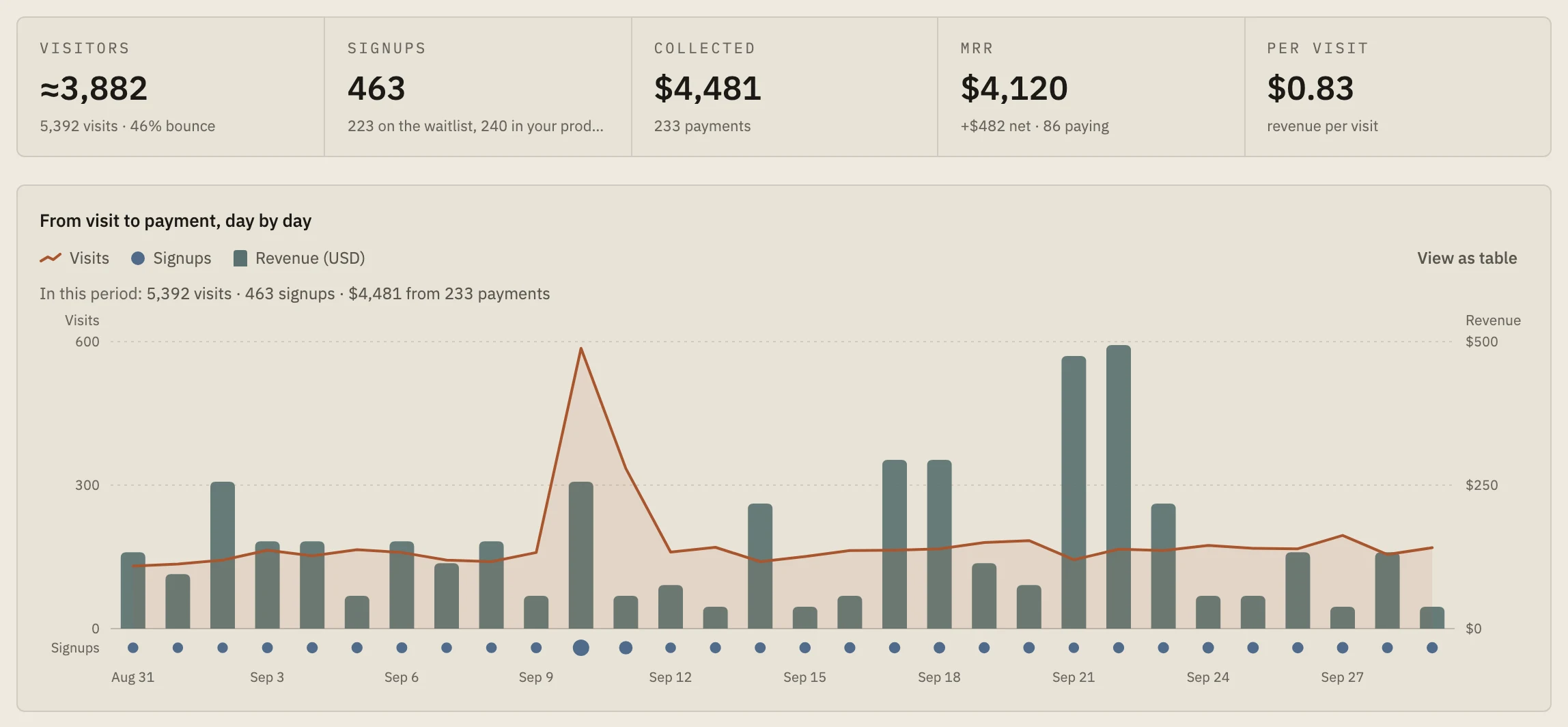
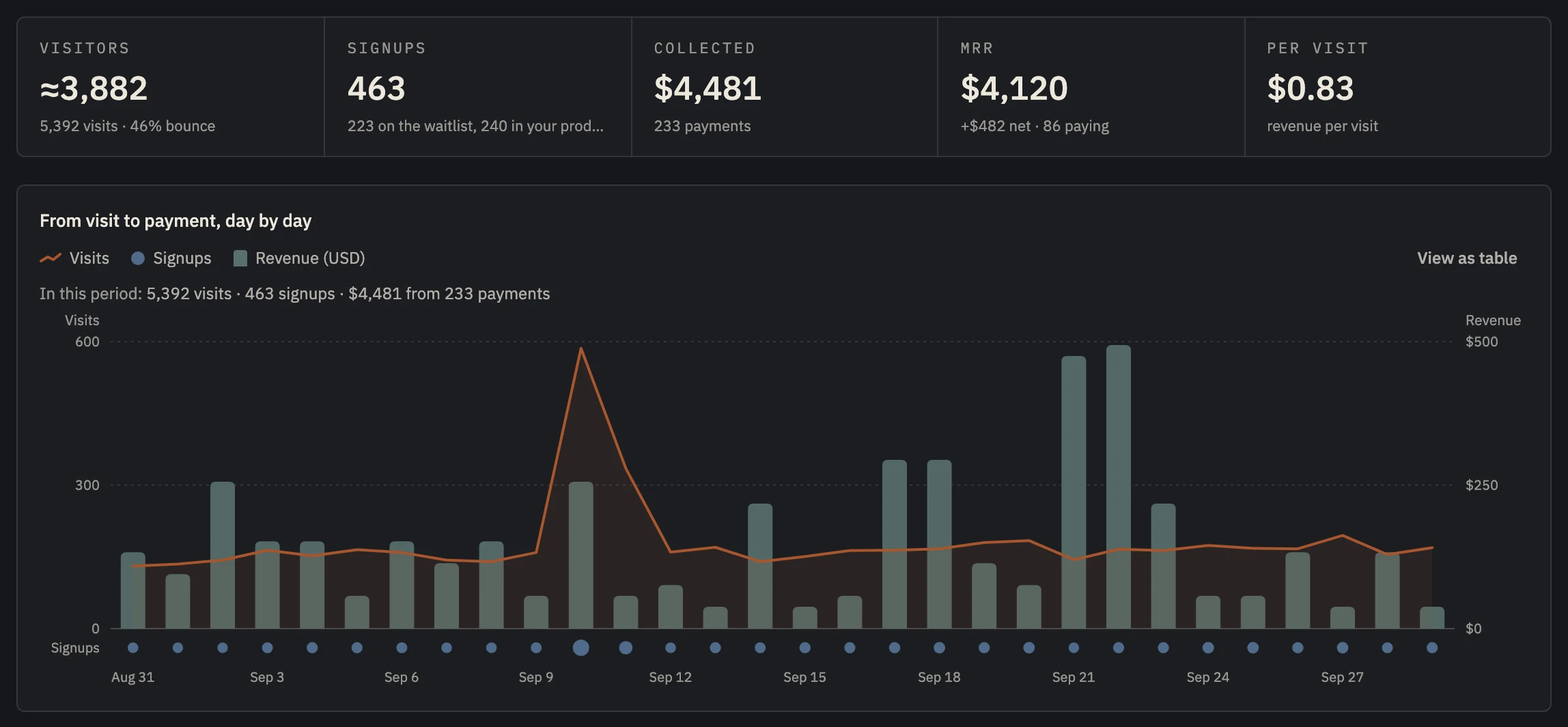 Example data
 - What you'll see once the plan is built.
- Visits and revenue, day by day.
Let the AI plan before it codes.
AI coding tools are fast and confident, and a vague request ("add analytics") gets a vague result: a script in the wrong place, a secret key in the browser, a form that doesn't record where signups came from.
A plan first fixes that. The agent reads your project, proposes exactly what goes where, and waits. You check it in a couple of minutes, and then it builds what you approved.
The prompt also carries the rules you'd otherwise have to know: secret keys stay on the server, and you connect Stripe yourself in the dashboard, never by pasting a key into a chat.
Where to paste it, in your tool.
- 01
Cursor or Windsurf
Paste it into the agent chat. To keep it for later sessions, save it as a project rule.
- 02
Claude Code
Paste it into the session. With Launch's MCP server installed, /mcp__nordva__plan_integration runs the same prompt.
- 03
Lovable, Bolt or v0
Paste it into the chat. Lovable and Bolt also have a Knowledge section for standing instructions; v0 has account Instructions.
- 04
Replit Agent
Paste it into the Agent chat, or add it to replit.md.
- 05
Then read the plan
Open NORDVA_PLAN.md, pick the steps you want, and tell the agent to build them.
Plan how to add Nordva Launch to this project. Do not change any code yet: I want a plan I can approve first.

1. Get your bearings. Read NORDVA.md if it exists. If the nordva MCP server is connected, call setup_check once to see the project, the plan and what is unlocked. The full reference is https://launch.nordva.dev/llms.txt and the endpoints are at https://docs.nordva.dev/endpoints/. Do not invent endpoints or fields that are not in there.

2. Check the project's name. If setup_check reports the name "My Project", suggest a name and a URL slug based on this repository (package name, README, site title), and ask me before calling update_project. The slug is public: it is the address of the hosted waitlist and changelog pages.

3. Read this codebase. Find out: the framework and how routing works; where the landing or marketing page is; whether there is sign-in and what identifies a user; whether Stripe is used; how releases or deploys happen; and whether there is already an email capture form, a changelog, a feedback form or in-app notifications that Launch would replace or sit next to.

4. Write NORDVA_PLAN.md with one section for each of these, in the order I should build them, quickest visible win first:
   - Waitlist: a signup form on the landing page (the zero-code widget or my own form calling POST /v1/waitlist/signups), passing the referrer and UTM values as "source" so signups can be attributed later.
   - Web analytics: the script tag in the head of every page (the snippet and the allowed domains are in GET /v1/analytics/settings), and, if there is sign-in, nordva('identify', { user_id, email }) after login and whenever a signed-in page of the app loads (once when a single-page app starts), so a later payment can be traced to the first visit and a browser that clears its cookies is linked again each day. Any form that already takes an email (contact, newsletter, login) gets data-nordva-identify on the form instead, which does the same without code. Where people come in without a web visit to read (an app, an import, a partner form), name it: identify's source ("ios-app") or data-nordva-source on the form, so the contact still shows where they came from. If the site already has a cookie banner, call nordva('consent', true) or nordva('consent', false) from it; if there is none and the visitors are European, the script can show its own with data-banner. In the site's privacy or cookie policy, name Nordva Launch as the analytics provider and link its policies (https://launch.nordva.dev/privacy/ and https://launch.nordva.dev/cookies/) instead of copying what it collects: those pages are kept current, and a copy goes stale when they change.
   - Goals, in the same step as the script, not later: a goal is a named action, and a visit that happened before it was named can never be counted. Start with the two that have attributes of their own, because they are where the Signups number comes from: data-nordva-signup on the signup button (or on the signup form, where only the submit counts) and data-nordva-signin on log in. Without them a product that has no Launch waitlist shows zero signups for ever. For sign-up through OAuth or a magic link, call nordva('goal', 'signup') on the page they land on afterwards. Then add data-nordva-goal="name" to the other elements that already exist in this codebase (no JavaScript needed), and call nordva('goal', 'name') only for things that are not a click, such as a form that submits by code. Go through the routes and components and list every place worth naming: the signup or "start free" button, a demo or "try it" link, the pricing page's plan buttons, the start of checkout, the first real action inside the product (the thing the product is for), an invite, a share, a docs or install command copy. Name them in lower case with hyphens and keep the name forever (renaming splits the history): signup, start-free, demo-open, checkout-start, first-project, invite-sent. Put the list in the plan with the file and line for each one, so I can tick them off.
   - A funnel, once those goals exist: the path you expect people to take (for example landing page, pricing, signup, first action) with create_funnel, so the step that loses people shows up. Free allows one funnel of three steps, Indie five of five.
   - Changelog: the widget or the hosted page, plus where in my release flow an entry gets published.
   - Feedback: a widget or form inside the product, passing my own user id.
   - Notifications: in-app notices for signed-in users.
   - Revenue, contacts and attribution: only if this project takes payments through Stripe. I connect Stripe myself in the dashboard; your part is only what reads the numbers.
   For each one give: whether it fits this product now (yes, later or no, with one line of why), the exact files you would add or change, which key it uses, which plan it needs, and a rough size (minutes or hours). Leave out anything that does not fit rather than padding the plan.

5. Show me a short summary of the plan and ask which step to build first. Build nothing until I answer.

Rules:
- NORDVA_SECRET_KEY is for server code only. Browser code uses the publishable key. Never print either key, and never commit the env file.
- Never ask me for a Stripe key and never put one in code. Stripe is connected read-only, by me, at https://app.nordva.dev/revenue.
- If something needs a higher plan, say so in the plan and carry on with the rest. Do not try to work around a plan limit.
- Prefer the zero-code widgets where they do the job. Write custom code only where the widget cannot do what this product needs. The prompt comes with your account.
The dashboard's checklist, Launch's MCP server and npx nordva@latest init all hand you this same prompt. The keys the plan needs are in your dashboard. The agent never needs your Stripe key, because you connect Stripe yourself, read-only.
The waitlist, the tracking script, the Stripe connection and 50 feedback messages a month are on the free plan. AI sorting of feedback needs Indie ($19 a month).
Set up in about five minutes.
- 01
Paste one line
About two minutes
Add the script tag to your site, or run npx nordva@latest init and let your AI coding agent wire it in. The first visit shows up within a minute.
- 02
Connect Stripe, read-only
About three minutes
Create a restricted Stripe key with read permissions and paste it. Launch can only read; disconnecting deletes everything it synced. Every plan, Free included.
- 03
See who pays, and why
From the first visit
Where visitors come from, which of them sign up, what they ask you for, and which source brought the ones who pay, on one record per person.
When Launch is the wrong tool.
- You want the AI to change your code without reviewing a plan first: this prompt is written to stop and ask.
Questions, answered.
Is it safe to give my AI tool API keys?
Your publishable key is meant for browser code. Your secret key belongs in your server's environment, never in frontend code or in a chat. The prompt tells the agent the same, and never to print either key.
Does it work on Lovable's free plan?
Yes, through the chat. Lovable's free plan doesn't let you edit code by hand, so let the agent make the changes.
What if my tool isn't listed?
Any tool that can read your code and follow instructions can use it: paste it into its chat.
Paste the prompt. Approve the plan.
Start free: the prompt and your keys are in the dashboard's checklist.